⬇
1. Install access
Add Bandit Office to your desktop, phone, or tablet so your team can open it quickly.
Install guide →
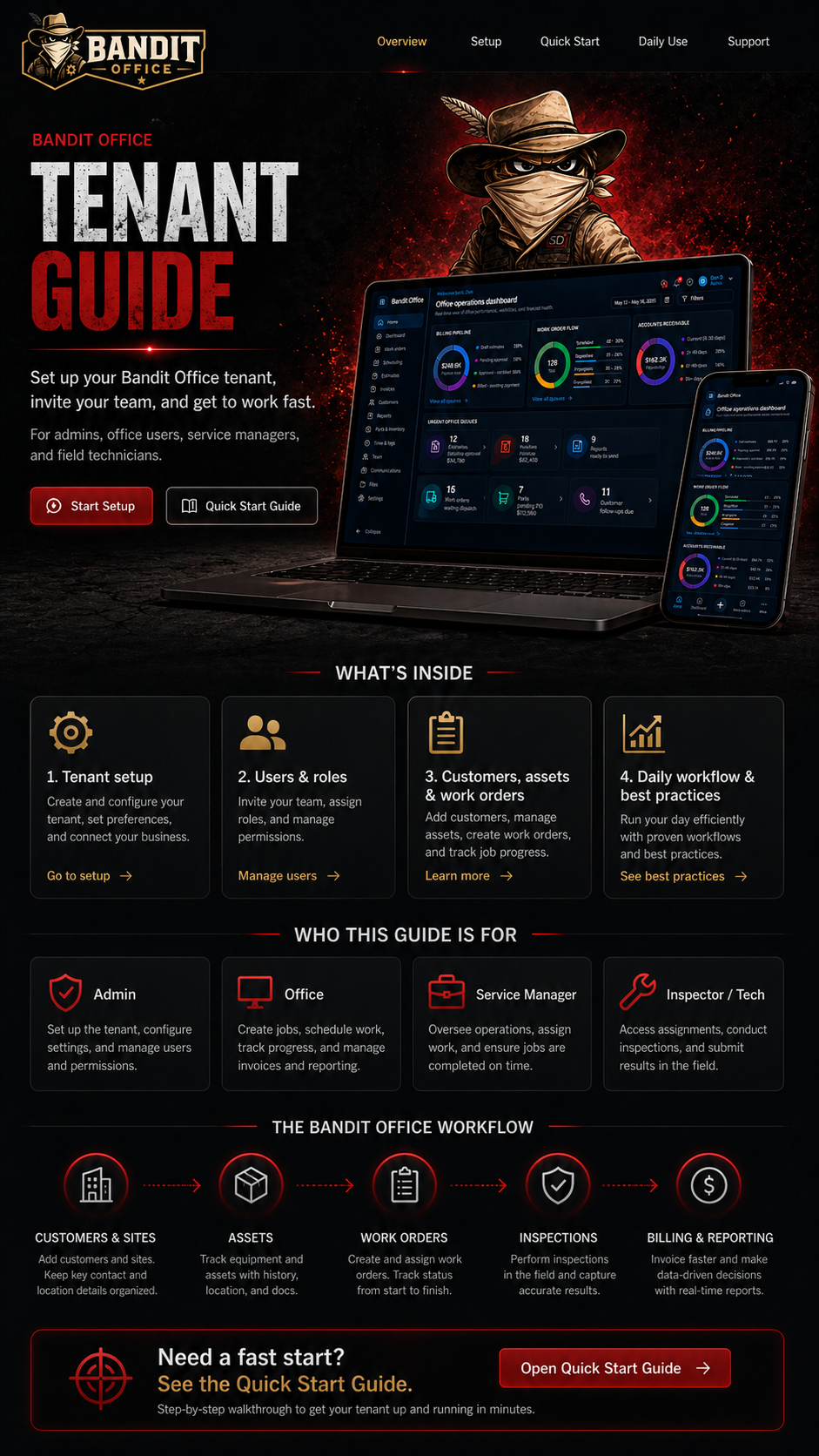
Set up your company workspace, install Bandit Office on your devices, invite your team, and start running your work from one command center.
This guide is written from your point of view as a Bandit Office tenant. Use it to configure your account, train your people, and build your first workflow.
Tip: these pages can be printed or saved as PDF from your browser.
Add Bandit Office to your desktop, phone, or tablet so your team can open it quickly.
Install guide →Enter your company profile, preferences, users, customers, sites, and first assets.
Setup steps →Use the 5-step quick start to test your first customer, asset, and work order.
Quick start →Use statuses, notes, photos, inspections, billing, and reports to keep work moving.
Daily use →Sets up your tenant, manages users, permissions, settings, and billing options.
Creates customers, work orders, invoices, schedules, reports, and customer follow-up.
Coordinates jobs, dispatches work, reviews progress, and keeps the team aligned.
Open assigned work, update statuses, add notes/photos, and complete inspections.
Add the companies and service locations you support.
Track equipment, locations, photos, serials, and service history.
Create jobs, assign work, dispatch teams, and track status.
Capture results, notes, photos, deficiencies, and reports.
Turn completed work into clean reporting and billing follow-up.
Start with one customer, one site, one asset, and one work order.